Display Batch Record Details
The Batch Record Details table contains all the operations executed based on the uploaded batch file.
To view the Batch Record Details, do these steps:
- Select Batch Operation on the navigation sidebar. The Batch Operations List is displayed.
- Scroll the list of batch operations and click a row to display the Record Details for the selected batch operation.
- Use the Filter Parameter controls to update the table with filtered data.
A screen capture of the Batch Operation Record Details is shown here.
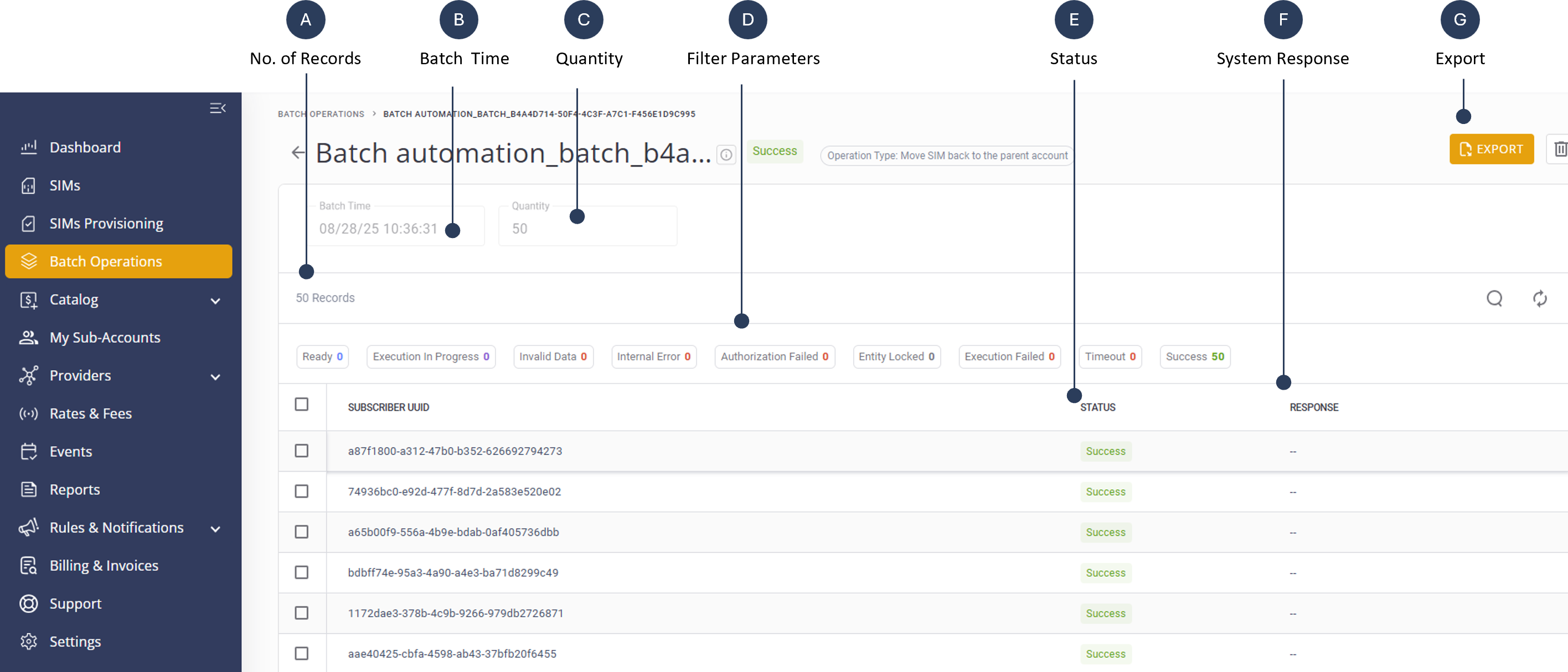
A description of the Batch Record Details columns is provided in this table.
| Column Label | Description |
|---|---|
| No. of Records | The quantity of operations included in the uploaded batch file; each operation is a row in the CSV file Display the names of various batch operations. |
| Time | Shows the date each batch operation was created. |
| Operation Type | Details the type of operation (e.g., Move SIM). |
| Filter Parameters | Enables users to update the table with filtered data. |
| Subscriber UUID | The SIM UUID of this operation in the batch execution. |
| Item Status | Displays the current status of each item (e.g., Success). The status types include:
|
| Response |
The system response is usually a descriptive error message to any status other than Ready or Success.
|
| Export | Export the table to a CSV file |